Using UltraJog CNC
Everything you need to connect the handwheel to your Z1 and use it day to day.
Getting started
- Charge it. Plug a USB-C charger into the port on the front. It also runs while plugged in.
- Turn on your Z1 and let it finish starting up. Its built-in "Makera" Wi-Fi hotspot must be on.
- Wait a few seconds. UltraJog joins the Z1's hotspot on its own. On the dashboard the status pill turns green and reads Live once it's talking to the Z1.
- Home the Z1 in the Makera app as usual.
- Arm the wheel: press the button 3× quickly. Three white flashes mean jogging is on.
- Turn the knob. The selected axis moves by the current step size per click.
http://z1-pendant.local. Add it to your home screen for one-tap access.Button controls
UltraJog has one button on the front. Short presses act 0.4 s after you let go, so an axis change takes effect a moment after the last press.
| Press | What it does |
|---|---|
| 1× | Next axis: X (red), then Y (green), then Z (blue) |
| Hold 0.6 s | Next step size: 0.001, 0.01, then 0.1 mm per click. The light blinks 1, 2 or 3 times to show which. |
| 3× | Jogging on or off. On: 3 quick white flashes. Off: 1 long white flash. Jogging is always off at power-up. |
| 2× | Unlock after a soft-limit alarm (only while the light flashes amber). Does nothing at other times. |
The dashboard can do all of these too: tap JOG to turn jogging on or off, tap an axis to select it, and tap Step to change the step size.
Status light
| Light | Meaning |
|---|---|
| Red / green / blue | Selected axis X / Y / Z, jogging on |
| Dim colour | Jogging is blocked right now, for example while a job runs or the link is slow. The dashboard says why. |
| Fast amber flashing | Soft-limit alarm. Press 2× to unlock. |
| White flashes | Jogging turned on (3 quick) or off (1 long) |
The dashboard
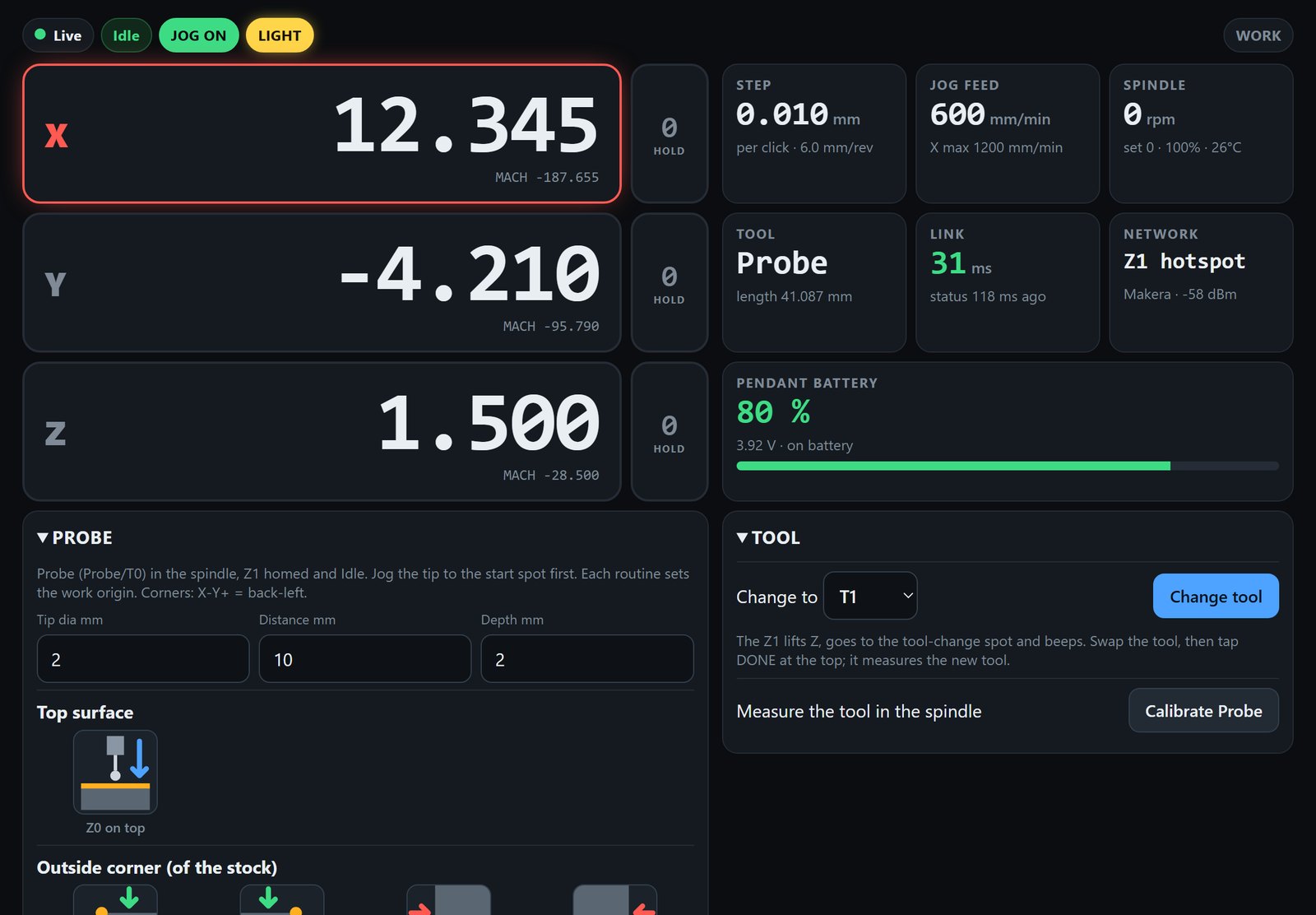
The dashboard is a web page served by UltraJog itself; there's no app to install. On a phone it stacks vertically; on a tablet in landscape it spreads out into columns.
- Position: large work coordinates with machine coordinates underneath. Tap WORK to swap.
- Zero: hold the 0 button beside an axis for a moment to set that axis's work zero (only while the Z1 is idle).
- Step and jog feed: the current step size and the feed it jogs at, capped to the Z1's limits.
- Spindle and tool: rpm, override and temperature; the tool in the spindle and its measured length.
- Link and network: round-trip time to the Z1 and Wi-Fi signal. Under about 120 ms is shown in green.
- Battery: charge level and whether it's charging.
- LIGHT: turns the Z1's machine light on and off.
Soft-limit unlock
If a jog runs past a soft limit (for example +X right after homing), the Z1 stops and raises an alarm. The light flashes amber and the dashboard shows a red SOFT LIMIT, TAP TO UNLOCK banner.
- Press the button 2×, or tap the banner.
- Jog back the other way.
Wheel turns made during the alarm are discarded, so nothing moves on its own after the unlock. Other alarms (a job error, a hard limit, a reset that needs homing) must be cleared in the Makera app.
Tool change and calibration
- With the Z1 idle, open TOOL on the dashboard, pick the tool and tap Change tool.
- The Z1 lifts Z, moves to the tool-change position and beeps.
- Swap the tool, then tap DONE in the yellow banner. The Z1 measures the new tool.
Calibrate measures the tool already in the spindle. The wheel stays locked until a change or calibration finishes. Keep hands clear while the machine moves.
Probing
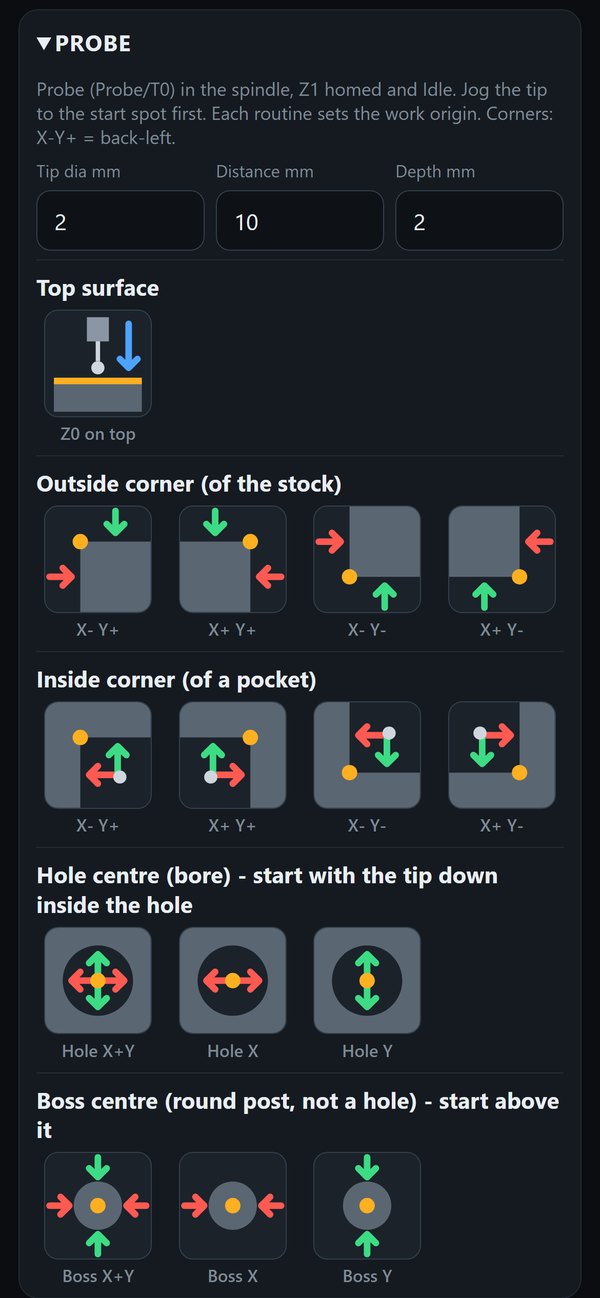
The PROBE panel runs the Z1's own probe routines and sets the work origin (G54). Each routine touches, backs off, touches again slowly and corrects for the probe's tip size.
- Put the probe in the spindle: TOOL, pick Probe, Change tool. UltraJog refuses to probe with any other tool, so an end mill is never driven into the work.
- Home the Z1 and make sure it's idle.
- Jog the probe tip to the start spot with the wheel (see the table).
- Open PROBE and set Tip dia (the ball size), Distance (how far it searches) and Depth (how far below the top it touches the sides). Your phone remembers them.
- Tap a routine and confirm. Keep hands clear; the wheel stays locked until the Z1 is idle again.
| Routine | Start with the tip | Sets |
|---|---|---|
| Top surface | Over the stock | Z0 |
| Outside corner (4) | Over the stock top, a few mm in from that corner | X0 Y0 at the corner, Z0 on top |
| Inside corner (4) | Over the top surface just outside that pocket corner, closer than Distance | X0 Y0 at the corner, Z0 on top |
| Hole centre: X+Y, X or Y | Lowered into the hole | X0 / Y0 at the centre |
| Boss centre: X+Y, X or Y | Over the middle of the post; Distance more than half its width | X0 / Y0 at the centre, Z0 on top |
Corner names are axis directions: X− is left, Y+ is toward the back. If a touch doesn't happen within Distance, the Z1 stops with "Probe fail"; clear it in the Makera app.
Wi-Fi modes
| Mode | When to use it |
|---|---|
| Z1 hotspot (default) | Fastest and simplest. UltraJog and your phone both join the Z1's "Makera" Wi-Fi. Dashboard at z1-pendant.local. |
| Home Wi-Fi | If your Z1 lives on your home network. Under WIFI SETTINGS, tap Find networks, pick yours and enter its password on your phone. Switching home is tried for 30 s and falls back to the hotspot if it can't join. |
Firmware updates
Open the dashboard and tap Update firmware. UltraJog leaves the Makera Wi-Fi for a minute or two to download over your saved home network. If there's a newer version it installs it and restarts; the page reconnects by itself. Jogging is turned off during an update.
A home network must be saved under Wi-Fi settings first, because the Z1's hotspot has no internet connection.
Safety interlocks
- Off at power-up: jogging has to be armed with 3× every time.
- Locked during jobs: the wheel does nothing while a job, tool change, calibration or probing routine runs.
- Probe check: probing only starts with the probe (not a cutter) in the spindle.
- Fresh status only: moves are sent only while the Z1 is answering; if status goes stale for 3 s, jogging blocks.
- Small queue: only a fraction of a second of motion is ever queued, so stopping the knob stops the machine.
- Auto off: jogging switches off after 2 minutes without turning the wheel.
- Feed caps: jog feed never exceeds the Z1's own axis limits.
Troubleshooting
| Symptom | Try this |
|---|---|
| Turning the knob does nothing | Jogging is off after every power-up: press 3×. If the light is dim, the dashboard shows why it's blocked. |
| Dashboard won't open | Make sure the phone is on the Makera Wi-Fi (not mobile data or home Wi-Fi), then open http://z1-pendant.local. If your phone can't open .local addresses (some Android phones), use http://192.168.4.2 instead. |
| Motion feels laggy | Check the Link tile. Keep UltraJog on the open side of the machine, with a clear line to the Z1. |
| Machine stopped with an alarm | Soft limit: press 2× or tap the banner, then jog back. Other alarms: clear them in the Makera app. |
| Battery runs down quickly | Charge from a USB-C charger; the Battery tile shows the level and charging state. |